Mastering Adobe Illustrator: A Comprehensive Guide
Embark on a journey through the world of Adobe Illustrator, a powerhouse in the design industry. From its humble beginnings to its essential features, this guide will equip you with the knowledge to create stunning vector graphics and captivating designs.
Overview of Adobe Illustrator
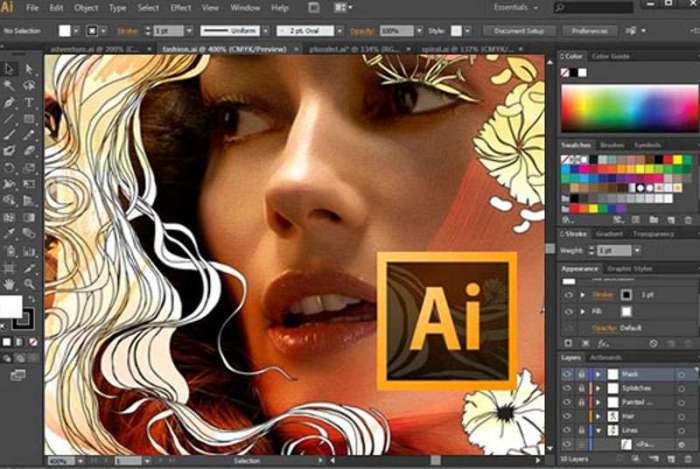
Adobe Illustrator, developed by Adobe Inc., is a vector graphics editor that has been a staple in the design industry for decades.
Brief History of Adobe Illustrator
Adobe Illustrator was first released in 1987 for the Apple Macintosh. It was one of the first graphic design programs to use vector graphics, allowing for scalable and resolution-independent artwork.
Primary Features and Functionalities
- Vector Drawing Tools: Illustrator offers a wide range of tools for creating and editing vector graphics, including shapes, lines, and curves.
- Typography: The software includes robust typography tools for precise control over text formatting and styling.
- Image Tracing: Illustrator can convert raster images into vector graphics, allowing for easy editing and scaling.
- Artboards: Users can work on multiple artboards within a single document, making it easier to manage and organize design projects.
- Integration with other Adobe Creative Cloud apps: Illustrator seamlessly integrates with other Adobe software like Photoshop and InDesign, allowing for smooth workflow between programs.
Importance in the Design Industry
Adobe Illustrator is widely used by graphic designers, illustrators, and web designers for creating logos, icons, typography, and complex illustrations. Its versatility, precision, and scalability make it an essential tool for professional designers across various industries.
Interface and Tools
Adobe Illustrator provides a user-friendly workspace layout that is designed to optimize workflow and efficiency for creating vector graphics. The interface consists of various panels, tools, and menus that allow users to access and manipulate different elements easily.
Workspace Layout
The workspace layout of Adobe Illustrator includes a canvas where users can create their designs. Surrounding the canvas are various panels such as the Tools panel, the Control panel, the Color panel, and the Layers panel. These panels provide quick access to essential tools and settings for working on vector graphics.
Essential Tools
- Selection Tool: Used to select and move objects on the canvas.
- Pen Tool: Allows users to create precise shapes and paths.
- Type Tool: Used for adding and formatting text within the design.
- Shape Tools: Includes tools for creating basic shapes like rectangles, ellipses, and polygons.
- Gradient Tool: Used to apply gradients to objects in the design.
- Brush Tool: Allows users to paint and draw freehand strokes on the canvas.
Adobe Illustrator provides a wide range of tools to accommodate different design needs, from creating simple shapes to intricate illustrations.
Creating Vector Graphics
To create vector graphics in Adobe Illustrator, users can utilize the various tools available to draw shapes, paths, and objects. These tools allow for precise control over anchor points, curves, and lines, resulting in scalable and high-quality graphics that can be resized without losing clarity.
By combining shapes, applying colors and gradients, and manipulating text, users can create complex and detailed vector illustrations directly in Adobe Illustrator.
Creating Vector Graphics
Vector graphics are images created using mathematical equations to define shapes and lines, allowing them to be scaled infinitely without losing quality. This makes them ideal for design as they can be resized without pixelation.
Step-by-Step Process of Creating a Simple Vector Graphic in Adobe Illustrator
To create a simple vector graphic in Adobe Illustrator, follow these steps:
- Open Adobe Illustrator and create a new document.
- Select the Pen Tool from the toolbar.
- Click on the canvas to create anchor points and drag to create curves.
- Adjust the anchor points and curves to create the desired shape.
- Use the Fill and Stroke options to customize the colors and Artikels of the shape.
- Continue adding shapes and editing them until you achieve the desired design.
- Save your vector graphic in a suitable format such as .ai or .svg.
Tips and Tricks for Efficiently Creating Vector Graphics using Adobe Illustrator
- Use keyboard shortcuts to speed up your workflow, such as Ctrl+C for copy and Ctrl+V for paste.
- Learn to use the Pathfinder tool to combine, divide, and subtract shapes for more complex designs.
- Utilize the Align tool to easily align and distribute objects within your design.
- Experiment with different stroke and fill options to create unique visual effects in your vector graphics.
- Practice using the Pen Tool to master creating precise shapes and curves in your designs.
Working with Layers
Layers in Adobe Illustrator serve as a foundational organizational tool for your artwork. They allow you to separate different elements of your design, making it easier to manage and edit specific parts without affecting the rest of the composition.
Concept of Layers
Layers in Adobe Illustrator function similarly to layers in traditional art. Each layer contains specific elements of your design, such as shapes, text, or images. By stacking these layers on top of each other, you can create complex compositions while maintaining individual control over each element.
- Layers help in organizing your artwork by providing a structured hierarchy of elements.
- They allow you to hide or show specific parts of your design, making it easier to focus on particular details.
- You can lock layers to prevent accidental changes to certain elements while working on others.
Managing Layers Effectively
When working with layers in Adobe Illustrator, it's essential to follow some best practices to ensure a smooth workflow and efficient editing process.
Label your layers descriptively to easily identify the content they contain.
- Use different colors for each layer to visually distinguish between them.
- Group related elements within a layer to keep your artwork organized.
- Arrange layers in a logical order, with background elements at the bottom and foreground elements at the top.
- Utilize the Layers panel to navigate through different layers and make adjustments quickly.
Typography and Text Effects
Typography and text effects play a crucial role in graphic design, allowing designers to create visually appealing and engaging content. In Adobe Illustrator, you have a wide range of typographic capabilities at your disposal to enhance your designs.
Text Creation and Manipulation
When working with text in Adobe Illustrator, you can easily create and manipulate text to fit your design needs. You have the flexibility to adjust the font, size, spacing, alignment, and color of the text. Additionally, you can convert text to Artikels, allowing you to further customize and edit the text as vector shapes.
- You can create text by selecting the Type tool and clicking on your artboard to start typing.
- To manipulate text, you can use the Character and Paragraph panels to adjust the font, size, leading, and other text properties.
- Text can be transformed into shapes by converting it to Artikels, enabling more creative freedom for design elements.
Text Effects in Adobe Illustrator
Adobe Illustrator offers a variety of text effects that can elevate the visual impact of your designs. These effects allow you to add depth, dimension, and style to your text, making it stand out in your compositions.
- Text can be transformed using effects like Drop Shadow, Inner Shadow, Bevel and Emboss, and Gradient Overlay to create depth and dimension.
- Applying effects like Warp, Twirl, and Pucker & Bloat can distort text in unique ways, adding an artistic touch to your designs.
- Using tools like Envelope Distort or Mesh Warp, you can manipulate text to conform to custom shapes or paths, enhancing the overall design aesthetic.
Color and Gradients
Color and gradients play a crucial role in design projects, as they can evoke emotions, create visual interest, and help communicate messages effectively. In Adobe Illustrator, you can easily apply colors and gradients to your artwork to enhance its overall appeal.
Applying Colors and Gradients in Adobe Illustrator
- Use the Color Panel: Select objects or text, then choose a color from the Color Panel to apply it.
- Gradient Tool: Create smooth color transitions by using the Gradient Tool to apply gradients to shapes or text.
- Swatches Panel: Save custom color swatches for quick access and consistency in your design projects.
- Color Modes: Understand the different color modes like RGB and CMYK for digital and print designs, respectively.
Tips for Creating Visually Appealing Color Schemes and Gradients
- Use the Color Wheel: Experiment with complementary, analogous, or triadic color schemes to create harmony in your designs.
- Balance Colors: Avoid using too many bright or dull colors in one design - aim for a balanced color palette.
- Consider Contrast: Utilize contrast in colors to make important elements stand out and improve readability.
- Gradient Mapping: Explore different gradient types like linear, radial, or freeform to add depth and dimension to your artwork.
Final Wrap-Up
In conclusion, Adobe Illustrator stands as a vital tool for designers, offering a plethora of functions to bring your creative visions to life. Whether you're a beginner or a seasoned pro, mastering Illustrator can elevate your design game to new heights.
Essential Questionnaire
What is the history of Adobe Illustrator?
Adobe Illustrator was first released in 1987 as the first software to offer a graphical user interface for creating vector graphics.
How do layers help in organizing artwork in Adobe Illustrator?
Layers in Illustrator allow you to separate and organize different elements of your design, making it easier to edit and manage complex projects.
What are some tips for efficiently creating vector graphics in Adobe Illustrator?
Utilize shortcuts, practice using the Pen tool, and make use of the Pathfinder tool to streamline your vector graphic creation process.